HTMLの<pre>タグにコピーボタンを設置する方法:javascript
 シェア
シェア ツイート
ツイート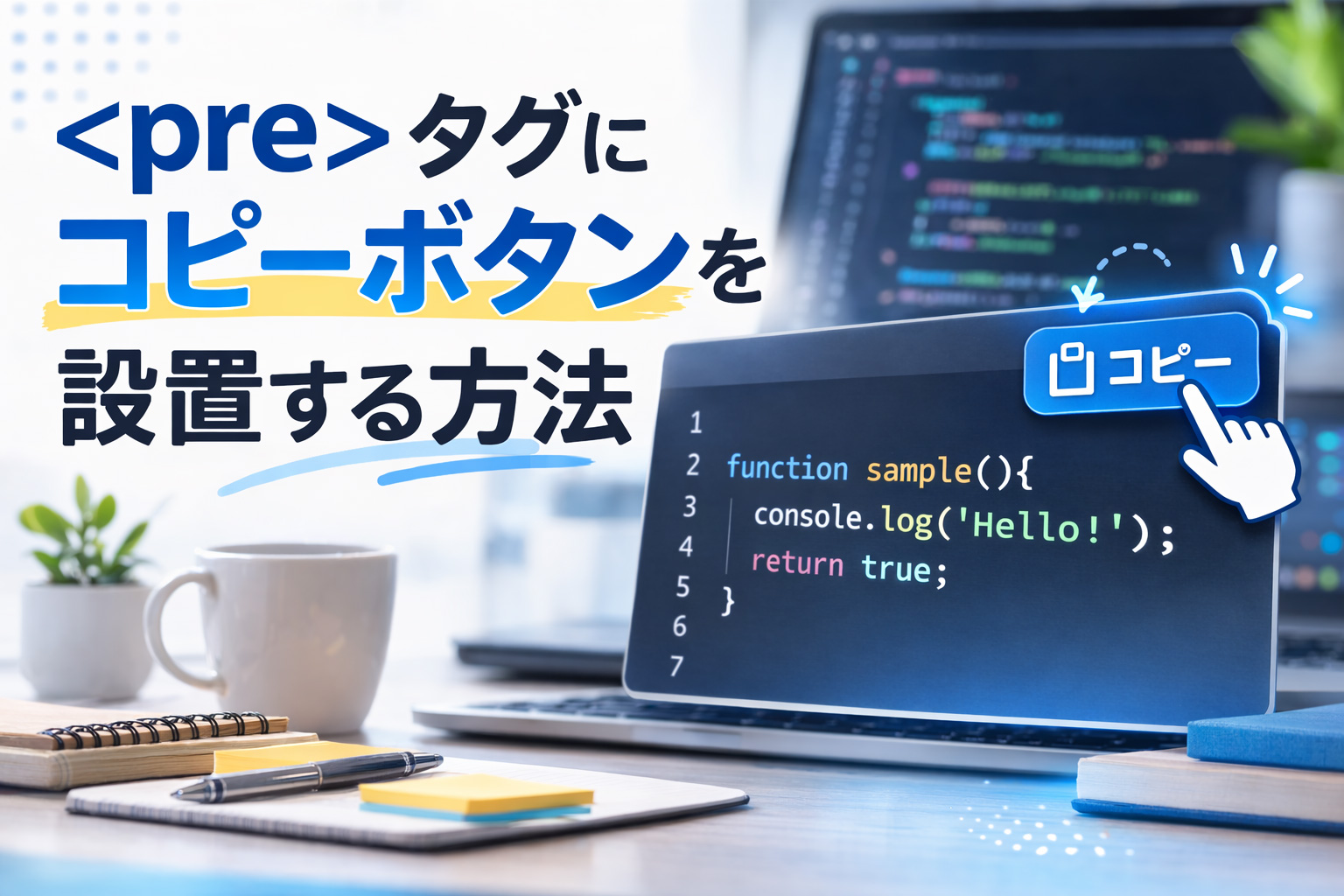
目次
HTMLの<pre>コードブロックにコピーボタンを設置する方法
Webサイトの記事内でコードやテンプレート文を紹介する場合、ユーザーが簡単にコピーできると利便性が大きく向上します。
特にWordPressの技術記事や文例サイトでは、コピー機能を付けることでユーザー体験(UX)を改善できます。
この記事では、JavaScriptを使用して<pre>タグ内のテキストをワンクリックでコピーできるボタンを自動生成する方法を解説します。
紹介するスクリプトは、ページ内にあるすべての<pre>要素に対してコピーボタンを追加し、コピー成功時にはチェックマーク表示に切り替わる実用的な実装です。
このコードで実現できる機能
- 記事内の<pre>タグに自動でコピーボタンを追加
- クリックでテキストをクリップボードにコピー
- コピー成功時は「コピー完了」表示とチェックマークに変更
- スマホでも押しやすいボタンUI
- 複数のコードブロックにも自動対応
処理の流れ
このスクリプトは以下の流れで動作します。
- ページ読み込み後(DOMContentLoaded)に処理を開始
- ページ内の<pre>タグをすべて取得
- 各<pre>要素にコピーボタンを生成
- ボタン押下でテキストをクリップボードへコピー
- コピー成功時にボタン表示を変更
- 一定時間後に元の表示へ戻す
コードの全体構造
document.addEventListener('DOMContentLoaded', function () {
  const pres = document.querySelectorAll('pre');

  if (!pres.length) return;

  pres.forEach(function (pre, index) {
    if (pre.dataset.copyReady === 'true') return;
    pre.dataset.copyReady = 'true';

    pre.classList.add('copy-pre-wrap');

    const button = document.createElement('button');
    button.type = 'button';
    button.className = 'copy-pre-btn';
    button.setAttribute('aria-label', 'コードをコピー');
    button.setAttribute('data-default-label', 'コピー');
    button.setAttribute('data-copied-label', 'コピー完了');

    button.innerHTML = `
      <svg class="copy-icon" viewBox="0 0 24 24" aria-hidden="true" fill="none">
        <rect x="9" y="9" width="10" height="10" rx="2" stroke="currentColor" stroke-width="2"></rect>
        <rect x="5" y="5" width="10" height="10" rx="2" stroke="currentColor" stroke-width="2" opacity="0.65"></rect>
      </svg>
      <svg class="copy-check" viewBox="0 0 24 24" aria-hidden="true" fill="none">
        <path d="M5 13l4 4L19 7" stroke="currentColor" stroke-width="2.4" stroke-linecap="round" stroke-linejoin="round"></path>
      </svg>
      <span class="copy-label">コピー</span>
    `;

    pre.appendChild(button);

    const label = button.querySelector('.copy-label');
    let resetTimer = null;

    button.addEventListener('click', async function () {
      const codeEl = pre.querySelector('code');
      const text = codeEl ? codeEl.innerText : getPreTextWithoutButton(pre, button);

      try {
        await copyText(text);
        button.classList.add('is-copied');
        label.textContent = button.dataset.copiedLabel;

        clearTimeout(resetTimer);
        resetTimer = setTimeout(function () {
          button.classList.remove('is-copied');
          label.textContent = button.dataset.defaultLabel;
        }, 1600);
      } catch (error) {
        label.textContent = '失敗';
        clearTimeout(resetTimer);
        resetTimer = setTimeout(function () {
          button.classList.remove('is-copied');
          label.textContent = button.dataset.defaultLabel;
        }, 1600);
      }
    });
  });

  function getPreTextWithoutButton(pre, button) {
    const clone = pre.cloneNode(true);
    const btn = clone.querySelector('.copy-pre-btn');
    if (btn) btn.remove();
    return clone.innerText.trim();
  }

  async function copyText(text) {
    if (navigator.clipboard && window.isSecureContext) {
      return navigator.clipboard.writeText(text);
    }

    const textarea = document.createElement('textarea');
    textarea.value = text;
    textarea.setAttribute('readonly', '');
    textarea.style.position = 'fixed';
    textarea.style.top = '-9999px';
    textarea.style.left = '-9999px';
    document.body.appendChild(textarea);
    textarea.focus();
    textarea.select();

    try {
      document.execCommand('copy');
    } finally {
      textarea.remove();
    }
  }
});
最初に、ページの読み込み完了後に処理を実行するため、DOMContentLoadedイベントを使用します。
document.addEventListener('DOMContentLoaded', function () {
これにより、HTMLの構造がすべて読み込まれてからJavaScriptが実行されます。
<pre>タグの取得
次に、ページ内に存在するすべての<pre>タグを取得します。
const pres = document.querySelectorAll('pre');
もし対象が存在しない場合は処理を終了します。
if (!pres.length) return;
各<pre>タグにコピーボタンを追加
forEachを使用して、すべての<pre>タグに対して処理を実行します。
pres.forEach(function (pre, index) {
同じ要素にボタンが複数追加されないよう、data属性で処理済みフラグを付けています。
if (pre.dataset.copyReady === 'true') return;
pre.dataset.copyReady = 'true';
ボタン要素の生成
JavaScriptでbutton要素を作成し、クラスや属性を設定します。
const button = document.createElement('button');
button.type = 'button';
button.className = 'copy-pre-btn';
アクセシビリティ向上のため、aria-labelも設定しています。
button.setAttribute('aria-label', 'コードをコピー');
アイコンの設定
ボタン内にはSVGアイコンを配置しています。
- コピーアイコン
- コピー成功時のチェックアイコン
これにより、視覚的にコピー状態を分かりやすく表示できます。
クリック時のコピー処理
ボタンをクリックすると、<pre>内のテキストを取得してコピー処理を行います。
button.addEventListener('click', async function () {
もし<code>タグが存在する場合はその内容を優先してコピーします。
const codeEl = pre.querySelector('code');
存在しない場合は、ボタン要素を除いた<pre>のテキストを取得します。
Clipboard APIによるコピー
モダンブラウザではClipboard APIを使用してコピー処理を行います。
navigator.clipboard.writeText(text);
もし古いブラウザでClipboard APIが使用できない場合は、textareaを生成してコピーするフォールバック処理を実行します。
コピー成功時の表示変更
コピーが成功すると、ボタンの状態を変更します。
button.classList.add('is-copied');
label.textContent = button.dataset.copiedLabel;
これにより
- コピーアイコン → チェックアイコン
- コピー → コピー完了
という表示に切り替わります。
一定時間後に表示を戻す
コピー状態は1.6秒後に元の状態へ戻ります。
setTimeout(function () {
button.classList.remove('is-copied');
label.textContent = button.dataset.defaultLabel;
}, 1600);
CSSの雛型
pre.copy-pre-wrap,
.wp-block-preformatted.copy-pre-wrap,
.wp-block-code.copy-pre-wrap {
  position: relative;
  padding-top: 3.4em;
  overflow: auto;
}

.copy-pre-btn {
  position: absolute;
  top: 10px;
  right: 10px;
  z-index: 2;
  display: inline-flex;
  align-items: center;
  gap: 0.45em;
  min-height: 40px;
  padding: 10px 14px;
  border: 1px solid rgba(255,255,255,0.18);
  border-radius: 999px;
  background: rgba(34, 34, 34, 0.92);
  color: #fff;
  font-size: 13px;
  font-weight: 700;
  line-height: 1;
  cursor: pointer;
  transition: background .2s ease, transform .2s ease, opacity .2s ease;
  -webkit-tap-highlight-color: transparent;
  touch-action: manipulation;
}

.copy-pre-btn:hover {
  background: rgba(0, 0, 0, 0.95);
}

.copy-pre-btn:active {
  transform: scale(0.98);
}

.copy-pre-btn:focus-visible {
  outline: 2px solid #4da3ff;
  outline-offset: 2px;
}

.copy-pre-btn .copy-icon,
.copy-pre-btn .copy-check {
  width: 18px;
  height: 18px;
  flex: 0 0 18px;
  display: block;
}

.copy-pre-btn .copy-check {
  display: none;
}

.copy-pre-btn.is-copied .copy-icon {
  display: none;
}

.copy-pre-btn.is-copied .copy-check {
  display: block;
}

.copy-pre-btn .copy-label {
  display: inline-block;
  white-space: nowrap;
}

/* スマホではさらに押しやすく */
@media screen and (max-width: 767px) {
  pre.copy-pre-wrap,
  .wp-block-preformatted.copy-pre-wrap,
  .wp-block-code.copy-pre-wrap {
    padding-top: 3.8em;
  }

  .copy-pre-btn {
    top: 8px;
    right: 8px;
    min-height: 44px;
    padding: 12px 16px;
    font-size: 14px;
  }

  .copy-pre-btn .copy-icon,
  .copy-pre-btn .copy-check {
    width: 20px;
    height: 20px;
    flex-basis: 20px;
  }
}
まとめ
このJavaScriptを使用すると、記事内の<pre>タグに自動でコピーボタンを設置できます。
- 技術記事
- コードサンプル
- テンプレート文例
- 設定ファイル
などを紹介するページでは特に効果的です。
WordPressサイトでも簡単に導入できるため、ユーザーの操作性を高めたい場合はぜひ実装してみてください。

JavaScriptのおすすめ参考書

 ポチップ
ポチップ
 ポチップ
ポチップ